Guides for coaching staffs.
Learn the synadata tools step by step, with the same terms you see in the app. We start with Synadata Tagger for iPhone and iPad. The app itself is in German, so button names are quoted as they appear.
Synadata Tagger
Live tagging at the bench. One tap sets a tag with the exact time: shots with location, goals, zone entries, pressing, power play and more. After the game the tags are in the cockpit on the video.
Install and sign in
- Download Synadata Tagger from the App Store (iPhone or iPad, iOS 18 or later).
- Tap «Mit synadata anmelden». The app shows a code.
- On your Mac or another device open cockpit.synadata.io/desktop/verbinden, sign in with your cockpit account and enter the code.
- The app signs in by itself. No account? «Ohne Konto ausprobieren» starts the demo; everything stays on the device.
Your club needs the live tagging feature. If it is missing, contact us.
Tag a game
A session is one game or practice. Several devices can tag into the same session.
- Tap + at the top right, give it a name (e.g. opponent and date) and tap «Anlegen».
- Set «Wir greifen an ▶» or «◀ Wir greifen an» to the side your team attacks. Switch it after every period.
- Tap «Bully (Sync)» at the face-off, at least once per period. The tags are aligned to the video with it.
- Tap events as they happen. The app subtracts 3 seconds of reaction time, except for the face-off.
- If the app asks for team or line, tap it. It does not ask for what is already known.
Wrong tap? Tap «Rückgängig» in the list of recent tags.
Shots in shot mode
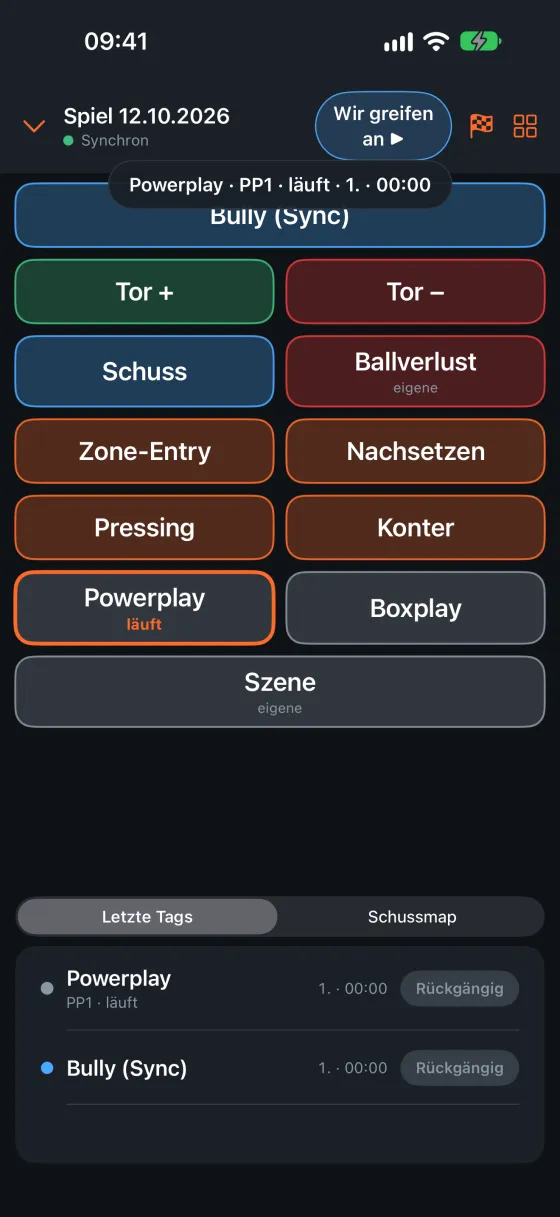
- Tap «Schuss». The field opens.
- Tap where the shot was taken, as seen from the bench.
- Choose «Schuss For» or «Schuss Against», then the line (L1 to L4, GK, PP1, PP2, BP1, BP2, 6v5).
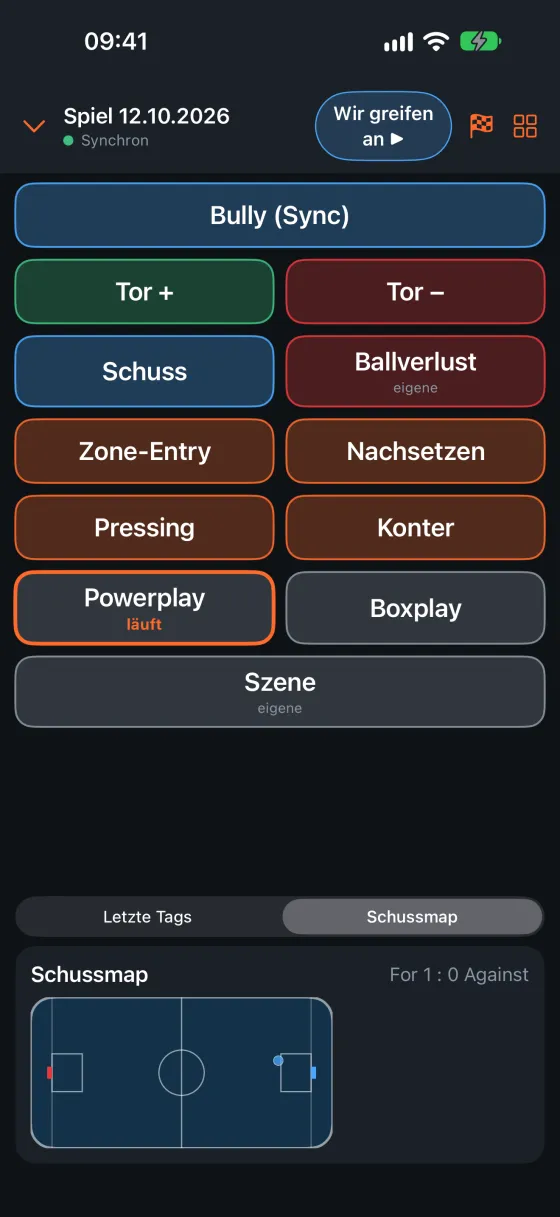
- Done. The shot map shows all shots with chance quality (mxG): on iPhone switch to «Schussmap» at the bottom, on iPad it is on the right.
More details per shot: turn on «Schuss-Details nach dem Schuss» in the settings.
Power play, penalty kill and scenes
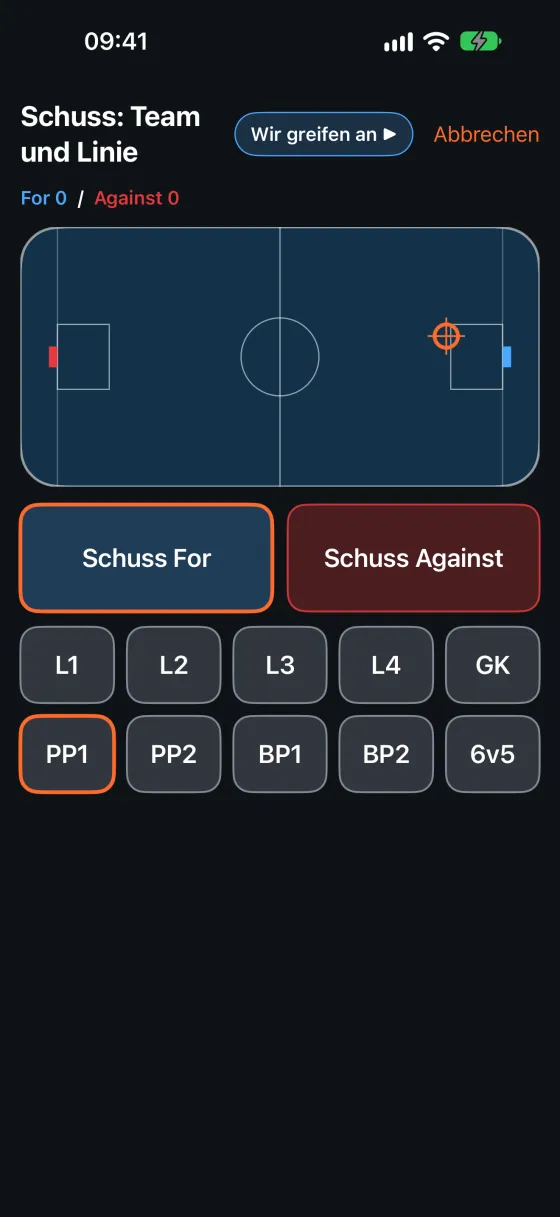
- Tap «Powerplay» or «Boxplay» when the penalty starts. The button shows «läuft».
- While it runs, every tag automatically gets the game situation and the line (PP1 or BP1).
- Tap again when the penalty ends. Starting a penalty kill ends a running power play by itself.
- «Szene» marks a moment you want to watch later on video.
Tag with several devices
- In the tagger tap the grid icon at the top right, then «Gerät einladen (QR) …».
- The second device scans the code with its camera and opens the session, without its own account.
- All tags go into the same session. For example one person tags shots, the other pressing and zone entries.
Without a connection the app keeps tagging and uploads automatically once online again.
Custom panels
A panel is the layout of the buttons. Panels apply to the whole club; admins can edit them.
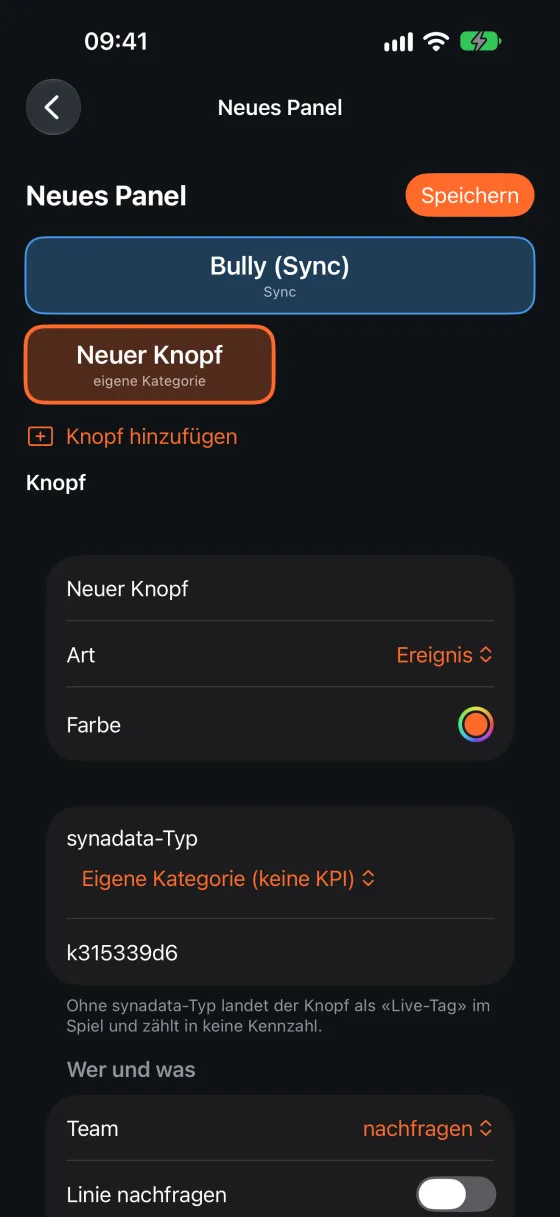
- On the start screen open the panel icon, then «Neues Panel» or copy a template.
- «Knopf hinzufügen», then choose name, colour and synadata type. With a synadata type the button counts in the metrics; «Eigene Kategorie (keine KPI)» is free.
- Under «Eigene Tag-Gruppen» create your own choices, e.g. shot type. The app asks for them when you tap.
- Mark it as «Standard des Clubs» so all devices use this panel.
On iPad with a keyboard or Bluetooth clicker: assign a key to each button under «Taste (Tastatur/Klicker)».
End a session
- After the game tap the chequered flag at the top.
- The app shows what was recorded and points out gaps, e.g. a missing «Bully (Sync)» in a period.
- «Beenden» stops running power plays and uploads everything. The Live Activity on the lock screen ends.
Import into the game
After the game you bring the session into the game in the cockpit. The tags then sit on the video and count in the metrics.
- Open the game in the cockpit and expand the timeline below the video.
- In the «Live-Tags» bar choose your session under «Erfassung wählen …». The tags appear as their own rows in the timeline.
- With «Bully (Sync)» the cockpit aligns everything by itself; the bar then says «Über Bully ausgerichtet». Check by jumping to a shot in the video.
- Without a face-off or if it is off: click a live marker, move the video to the real moment and tap «Anker hier». −1, −0.1, +0.1 and +1 shift all markers.
- «Übernehmen» creates the tags in the game. Shots and other events go to the review list as proposals, the rest as live tags.
- Review the proposals as usual. Only then do they count in the metrics.
The periods must be detected in the video and the game must not be closed yet. In Synadata Desktop, «Live-Tags laden …» brings the tags straight into the timeline.
Frequently asked questions
How precise are the times?
The app subtracts a reaction time when you tap (3 seconds by default, adjustable in the settings) and syncs its clock with the server. Aligned via the face-offs, tags are usually within one to two seconds on the video.
What happens without internet?
Nothing is lost. The app stores the tags on the device and uploads them once a connection is available.
Can I edit panels on iPhone?
Yes. Club admins can edit on iPhone and iPad. Everyone else chooses from the club's panels.
Who sees my tags?
Only your club in the cockpit. The app has no advertising and no tracking.
Questions about the app?
Tell us what you want to know or what is missing from this guide.